On a wedding day the light changes every few seconds. Window light, warm chandeliers, candles on the altar, a cloud passing over the garden. Auto white balance seems like the easy answer, but it has one big problem: it keeps re-measuring while you shoot. Pan from the window to the altar and the skin tones slide from cold to orange in the middle of the clip. That is the kind of shift you can’t fix cleanly in post. On the Sony A1 there is a function that solves it, and very few people use it: AWB Lock.
The problem with auto white balance
A constant white balance that is a little off is easy to correct: one adjustment on the whole clip and you are done. A white balance that moves during the shot is a different story. You end up keyframing the correction, and it never looks quite right. In a church with daylight from the windows and tungsten inside, or at a reception that goes from sunset to warm lights, auto WB will drift every time the camera sees a different mix of light.
What AWB Lock does
You keep the camera in auto white balance. When you press the button you assigned to AWB Lock, the A1 freezes the white balance it is measuring at that moment. On the screen, bottom right, you will see AWB L: the white balance is now locked and stays the same no matter where you point the camera. Press the button again and the camera goes back to normal auto white balance.
It gives you the speed of auto white balance with the stability of a manual setting.
How I set it up
- Go to the custom key settings (MENU → Setup → Operation Customize → Custom Key/Dial Set.).
- Choose a button you can reach without looking. I use the trash (Delete) button: in video I never delete clips in camera anyway.
- Assign the AWB Lock function to it.
How I use it on a wedding day
- Keep the camera in auto white balance.
- Point it at something white or neutral grey in the scene: a wall, a shirt, a tablecloth.
- Press the button. AWB L appears and the white balance is locked.
- Shoot the whole scene. Pans and walks no longer change the colour.
- New location, new light? Press the button again: the camera goes back to auto and re-measures. Point at something white, press again, and you are locked for the next scene.
Bonus: set AWB priority to White
Out of the box the A1 has the auto white balance priority set to Standard. Change it to White (Exposure/Color → White Balance → Priority Set in AWB). With White, the camera aims for neutral whites instead of keeping some of the warmth of artificial light. For weddings, where the dress and the shirts have to look white, it is the setting I recommend to everyone.
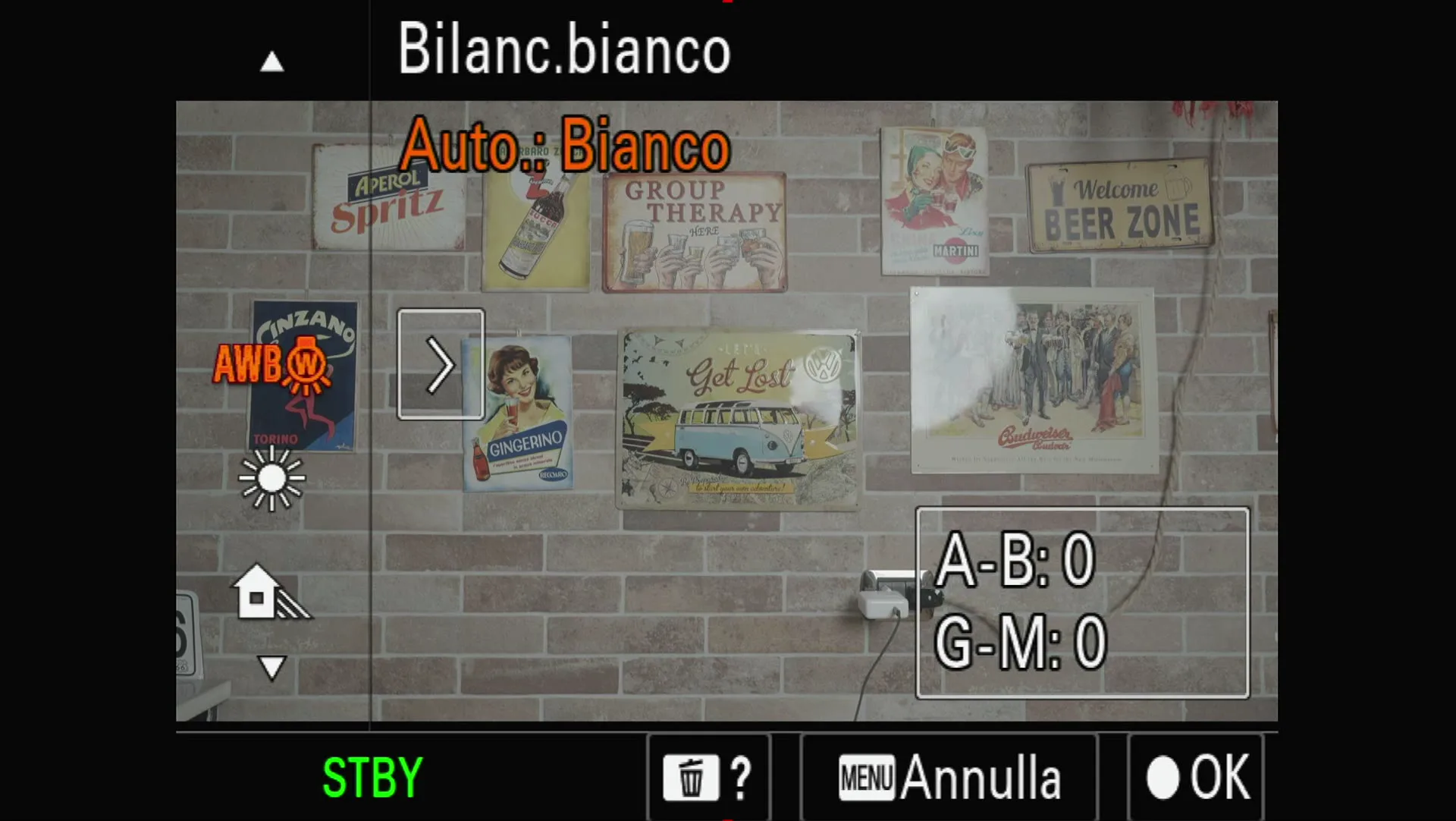
Quick recap
- Assign AWB Lock to a custom button (I use the trash button).
- Point at white or grey, press, and look for AWB L on the screen.
- Press again when the scene changes to go back to auto.
- Priority Set in AWB: White, not Standard.
A stable white balance in camera also makes the grade much easier, especially when you mix cameras. I wrote about that in Three Cameras, One Look: Matching Sony and Nikon RAW in DaVinci Resolve.
Watch the video
The 30-second version is on YouTube Shorts and on Instagram. More camera settings and tests on my YouTube channel.
Sony A1, screen recording of the camera menu. Words and video by Alex Sofo.